My Developer Setup 2026: Tiling, Neovim and Terminal Workflows on macOS
Introduction: The Thoughts Behind the Setup
The standard macOS behavior where you constantly have to reach for the mouse to move windows or switch between apps felt way too tedious and slow to me. I simply want to control the entire laptop using just my keyboard, both to be faster and because working on mechanical keyboards is simply much more fun.
The goal was therefore a 100 percent keyboard centric system: minimal latency, maximum overview, and a unified, clean design.
For the theme, I use Kanagawa Wave, which extends from the terminal to Neovim, the status bar, and my wallpaper.
It was also important to me to have a modular structure that is fast and easily reproducible on new machines. For that, I use GNU Stow and Git.
Window Management: How Do I Use macOS Without a Mouse?
AeroSpace (Tiling Window Manager)
AeroSpace brings the i3 feeling to macOS by automatically arranging windows into tiles.
I have set up several dedicated workspaces that I can quickly switch between, each holding specific apps:
- Workspace 1: Chrome and Ghostty (main development)
- Workspace 2: Obsidian and Preview (notes and documents)
- Workspace 3: VS Code (fallback or specific projects)
- Workspace 4: Outlook
- Workspace 5: Teams
- Workspace 6: Music
With dedicated keybindings, I switch between workspaces and apps in a split second:
Cmd + Alt + h/j/k/lfor navigationCmd + Alt + 1..6for workspaces
Sketchybar and JankyBorders
JankyBorders draws a subtle colored border around the currently active window, making it immediately visible where the focus is.
Sketchybar is a sleek status bar at the top of the screen that replaces the standard macOS menu bar. It only shows the essentials:
- Active AeroSpace workspaces
- System status
- VPN status
- Media controls
Raycast
Raycast is an extremely fast app launcher. With Cmd + Space, Raycast opens as a small input window. That way, I can find and launch any app directly instead of searching through the Dock or Finder.
Terminal and Shell: The Core of the Setup
Ghostty
For my terminal, I use Ghostty. It is GPU accelerated, extremely fast, and still offers a native macOS feel. Here too, the theme Kanagawa Wave is configured and combined with a Nerd Font to cleanly display icons like folders or Git glyphs.
Zsh and Starship Prompt
Starship provides me with a minimal, informative prompt showing the current Git branch, Git status, and current working directory.
Modern CLI Tools
To improve the terminal experience even further, I use several modern CLI tools:
- zoxide (replaces
cd): Remembers visited directories and lets me jump directly there withz <name>. - eza (replaces
ls): Shows icons and Git status directly in the file list (ll). - bat (replaces
cat): File display with syntax highlighting. - yazi: Blazing fast terminal file manager with preview.
- fzf and ripgrep: For fast fuzzy search and full text search in the terminal.
- fastfetch: Clean system summary shown when starting the shell.
Tmux: Multitasking and Navigation
Basic Configuration
I changed the default prefix to Ctrl + a because it is significantly more ergonomic than Ctrl + b. For this, I remapped the Caps Lock key to Control.
With Prefix + v (vertical) and Prefix + s (horizontal), I can create splits as usual.
tmux sessionizer
Through an interactive fzf menu (Prefix + f or alias ts), I pick a project directly. Tmux immediately jumps into the appropriate session or creates a new one automatically if it does not exist yet.
Vim Tmux Navigator
Serves as a seamless bridge: With Ctrl + h/j/k/l, the cursor jumps directly between Neovim splits and Tmux panes without any extra prefix.
Editor: Neovim with LazyVim
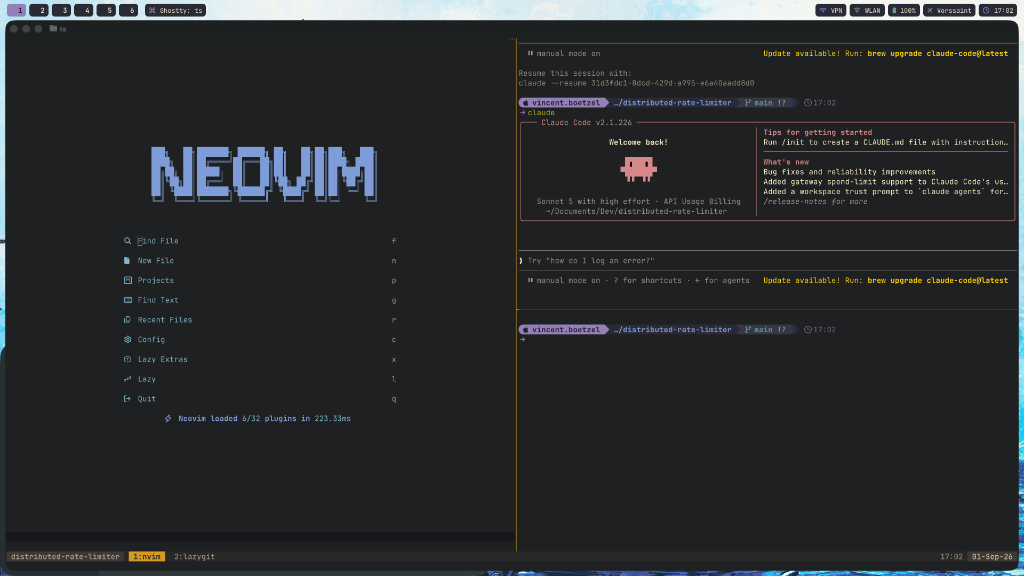
- LazyVim Setup: Fast startup times, modern plugins, and a full LSP and Treesitter setup.
- Harpoon 2 (Buffer Management): No cluttered tab bars with 20 open files. The 3 to 4 most important files are pinned with
<leader>aand jumped to directly with<leader>1..4. - Navigation and Search:
- Flash.nvim: Jump to any visible position on the screen with
s+ 2 characters. - Snacks Picker: Extremely fast fuzzy finder for files (
<leader><space>) and full text search (<leader>/). - Grug Far: Fast project wide search and replace (
<leader>sr).
- Flash.nvim: Jump to any visible position on the screen with
- The AI Pair Programming Flow: Neovim runs on the left side, while a terminal with CLI AI agents sits in the Tmux split on the right. Changes become visible in the editor immediately and I can switch seamlessly between AI and code with
Ctrl + h/l.
Dotfiles with GNU Stow
- Modular Folder Structure: Each tool has its own Stow package (
aerospace/,nvim/,ghostty/, etc.). Symlinking into the home directory is done simply withstow -R -v -t ~ *. - Security and Secrets: Sensitive tokens reside in
~/.zsh/secrets.zsh(protected via.gitignore). Private and work Git profiles are separated via.gitconfig-personal. - Automation (
install.sh): A single script sets up everything on a new machine (Homebrew, casks, fonts, background services, and symlinks).
Conclusion
This setup is by no means the most original or complex. But it works, and that is far more important than spending even more time trying to reach endless perfection. Coding is simply much more fun with this setup.
Feel free to check out the GitHub repository if you want to get inspired or adopt parts of it:
👉 https://github.com/vindows-exe/dotfiles